
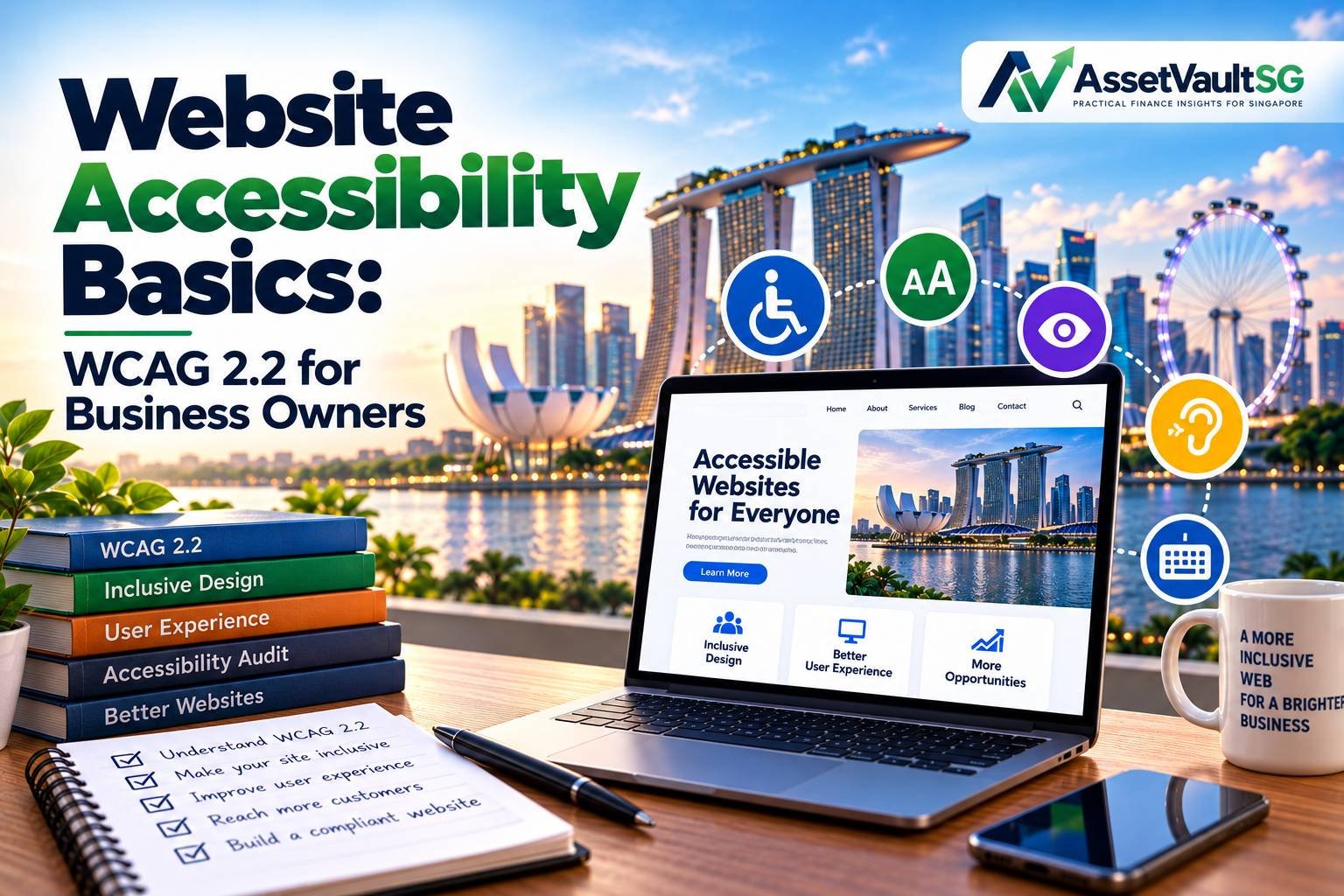
Website Accessibility Basics: WCAG 2.2 for Business Owners
An accessible website is one that everyone can use, including people who are blind or have low vision, are deaf or hard of hearing, have motor impairments, or have cognitive or learning disabilities. It also helps older users, people on mobile phones in bright sunlight and anyone with a temporary injury.
Accessibility is good for people, good for business and, increasingly, a legal requirement. Yet the problem is widespread: WebAIM’s 2026 analysis of the top one million home pages found detectable accessibility failures on 95.9% of them.
This guide explains the Web Content Accessibility Guidelines (WCAG) 2.2 in plain English, the laws that apply in our main reader regions and a practical checklist to get started.
Important: This article is general information, not legal advice. See our Disclaimer.
Key Takeaways
- WCAG 2.2 is the current W3C standard for web accessibility, and Level AA is the usual target.
- Accessibility laws now apply to many businesses in the EU, and expectations are rising in the UK, US and Canada.
- The most common problems, such as low contrast, missing alt text and unlabelled forms, are easy to fix.
- Automated tools find only some issues, so manual and keyboard testing are essential.
What Is WCAG?
The Web Content Accessibility Guidelines (WCAG) are published by the World Wide Web Consortium (W3C). They are the international reference standard for web accessibility and are referenced by laws and policies around the world.
The current version is WCAG 2.2, published as a W3C Recommendation in October 2023. It builds on WCAG 2.0 and 2.1, so a site that meets 2.2 also meets the earlier versions.
The Four Principles: POUR
WCAG is organised around four principles. Content must be:
| Principle | Meaning | Examples |
|---|---|---|
| Perceivable | Users can see or hear the content | Alt text for images, captions for video, enough colour contrast |
| Operable | Users can navigate and interact | Full keyboard access, enough time to complete tasks, no flashing content |
| Understandable | Content and controls are clear | Plain language, predictable navigation, helpful error messages |
| Robust | Content works with assistive technologies | Valid, well-structured code that screen readers can interpret |
Conformance Levels
Each guideline has testable success criteria at three levels:
- Level A: The minimum.
- Level AA: The standard most laws and policies refer to. This is the level most businesses should aim for.
- Level AAA: The highest level, which isn’t required for whole websites because some criteria can’t be met for all content.
What’s New in WCAG 2.2?
WCAG 2.2 added nine new success criteria. The W3C’s What’s New in WCAG 2.2 page explains them in detail. The ones at Levels A and AA are most relevant for businesses:
| New Criterion | Level | What It Means in Practice |
|---|---|---|
| Focus Not Obscured (Minimum) | AA | When a keyboard user moves to a link or button, it must not be completely hidden, for example by a sticky header or cookie banner. |
| Dragging Movements | AA | Anything that needs dragging, such as a slider, must also work with a simple click or tap. |
| Target Size (Minimum) | AA | Clickable targets should be at least 24 by 24 CSS pixels, or have enough space around them. |
| Consistent Help | A | Help options, such as a contact link or chat, should appear in the same place on each page. |
| Redundant Entry | A | Don’t make users re-enter information they have already provided in the same process. |
| Accessible Authentication (Minimum) | AA | Logins must not rely on memory tests or puzzles alone, and should allow password managers and copy and paste. |
WCAG 2.2 also removed the old “Parsing” criterion (4.1.1), because modern browsers and assistive technologies handle code differently than when it was written.
Accessibility Laws in Our Main Reader Regions
European Union
The European Accessibility Act (Directive (EU) 2019/882) has applied since 28 June 2025. It covers a range of products and services, including e-commerce, banking services, e-books and some transport services. Businesses that sell these services to consumers in the EU must make them accessible, usually by following the harmonised standard EN 301 549, which is closely aligned with WCAG. Microenterprises providing services (fewer than 10 employees and annual turnover or balance sheet of no more than €2 million) are exempt from the service requirements, although following them is still good practice.
United Kingdom
The Equality Act 2010 requires service providers to make reasonable adjustments so that disabled people are not put at a substantial disadvantage, and this is generally understood to include websites. Public sector bodies have specific requirements under the Public Sector Bodies Accessibility Regulations 2018, as explained on GOV.UK.
United States
The Americans with Disabilities Act (ADA) is frequently applied to websites through court cases, and website accessibility lawsuits against businesses are common. For state and local governments, the Department of Justice’s Title II web rule sets WCAG 2.1 Level AA as the standard. Following an interim final rule in April 2026, the compliance dates are now 26 April 2027 for larger entities and 26 April 2028 for smaller entities and special districts.
Canada
The federal Accessible Canada Act applies to federally regulated organisations, and Ontario’s Accessibility for Ontarians with Disabilities Act (AODA) requires many organisations in Ontario to meet WCAG 2.0 Level AA for their websites.
The Most Common Accessibility Problems
According to the WebAIM Million 2026 report, the most frequent issues detected on home pages were:
- Low contrast text (found on 83.9% of pages)
- Missing alternative text for images (53.1%)
- Missing form input labels (51.0%)
- Empty links (46.3%)
- Empty buttons (30.6%)
- Missing document language (13.5%)
The good news is that all of these are relatively easy to fix.
A Practical Accessibility Checklist
Text and Colour
- Make sure normal text has a contrast ratio of at least 4.5:1 against its background, and large text at least 3:1.
- Don’t use colour alone to convey meaning, for example “fields in red are required”. Add text or icons.
- Allow text to be resized up to 200% without breaking the layout.
Images and Media
- Add meaningful alt text to informative images. Describe what matters, not just what it is.
- Use empty alt text (
alt="") for purely decorative images so screen readers skip them. - Provide captions for videos and transcripts for audio.
Structure
- Use one H1 per page and a logical heading order (H2, then H3).
- Use real lists, tables and buttons in your HTML, not styled text that only looks like them.
- Set the page language in the HTML (for example,
lang="en").
Keyboard and Focus
- Make sure everything works with a keyboard alone, using Tab, Shift+Tab, Enter and Space.
- Keep a clearly visible focus indicator on links and buttons.
- Make sure sticky headers and cookie banners don’t hide focused items.
Links and Buttons
- Use descriptive link text, such as “Read our pricing guide”, rather than “Click here”.
- Give icon-only buttons an accessible name.
- Make touch targets at least 24 by 24 CSS pixels.
Forms
- Give every field a visible label.
- Explain errors clearly and say how to fix them.
- Allow password managers and copy and paste in login forms.
Cookie Banners and Chat Widgets
These are frequent sources of problems. Make sure they can be operated by keyboard, are announced to screen readers and don’t trap focus. Our guide to cookie consent done right and our guide to AI customer support chatbots both cover this.
How to Test Your Website
- Automated tools. Free tools such as WAVE, axe DevTools and the accessibility audit in Lighthouse find many common issues quickly. They typically catch only a portion of problems, though.
- Keyboard test. Put your mouse away and try to use your site, including menus, forms and pop-ups.
- Screen reader test. Try a free screen reader such as NVDA on Windows or the built-in VoiceOver on Mac and iPhone.
- Zoom test. Zoom your browser to 200% and check that content is still readable and usable.
- User feedback. Include people with disabilities in testing where possible, and provide an easy way for visitors to report problems.
A Word About Accessibility Overlays
Some products promise to make a website accessible instantly by adding a script or toolbar. Accessibility experts widely caution that overlays don’t fix underlying problems in the code, and they can sometimes interfere with assistive technologies that users already rely on. Fixing issues at the source is more reliable.
Accessibility, SEO and Performance
Many accessibility best practices also help search engines and performance. Descriptive headings, alt text, clear link text and well-structured HTML make content easier for search engines to understand. Our guide to technical SEO for developers covers these overlaps, and our pillar guide to Core Web Vitals explains how a fast, stable site helps every user.
Publish an Accessibility Statement
An accessibility statement tells visitors what standard you aim for, any known issues and how to contact you if they have problems. It shows commitment and gives users a clear route to ask for help. Review it whenever you make significant changes to your site.
Kaushal’s Note
In my opinion, website accessibility should be treated as a core part of website development, not something to fix after launch. What stands out in this guide is that many accessibility improvements, such as better colour contrast, descriptive links, properly labelled forms and keyboard navigation, are practical changes that benefit real users. They can also improve the clarity and structure of a website for search engines, although accessibility alone does not guarantee higher rankings. I would recommend starting with a WCAG 2.2 Level AA audit, fixing the most serious barriers first and combining automated checks with manual testing. A website is only truly useful when people with different abilities can navigate it and access its content.
Conclusion
Accessibility is about making sure everyone can use your website. Start with the basics: good contrast, meaningful alt text, labelled forms, keyboard access and clear structure. Test with tools and real people, publish an accessibility statement and treat accessibility as part of every update. The result is a better website for all your visitors and a stronger position under laws that are becoming stricter every year.